
AI-Powered Tag Suggestions for Microsoft Q&A
Streamlining the Question Posting Experience
This portfolio showcases my personal work and design projects. While some of the content may reference my professional experience at Microsoft, all views, opinions, and designs presented here are my own and do not reflect the official policy or position of Microsoft. Any data or information displayed is either publicly available or has been anonymized to protect confidentiality. This portfolio is intended solely for the purpose of demonstrating my skills and experience in UX design.
Problem
Users posting questions on Microsoft Q&A struggled with manual tag selection through complex 3-level dropdown hierarchies, leading to incorrect tagging, reduced engagement, and poor question discoverability.
Solution
An intelligent AI-powered tag suggestion system that analyzes question content and automatically recommends relevant tags, reducing tagging time from 2-3 minutes to 10-15 seconds.
The Challenge
User Pain Points
- Complex Navigation: Users had to navigate through 3 levels of nested dropdowns (Product → Technology → Specific Topic)
- Cognitive Load: Required prior knowledge of Microsoft's taxonomy structure
- Time-Consuming: Manual selection added 2-3 minutes to posting time
- High Error Rate: 40% of questions were re-tagged by moderators
- Reduced Engagement: Friction in posting led to abandoned questions
Business Impact
- Incorrectly tagged questions received fewer responses
- Increased moderator workload for re-tagging
- Reduced question discoverability affecting community engagement
BEFORE
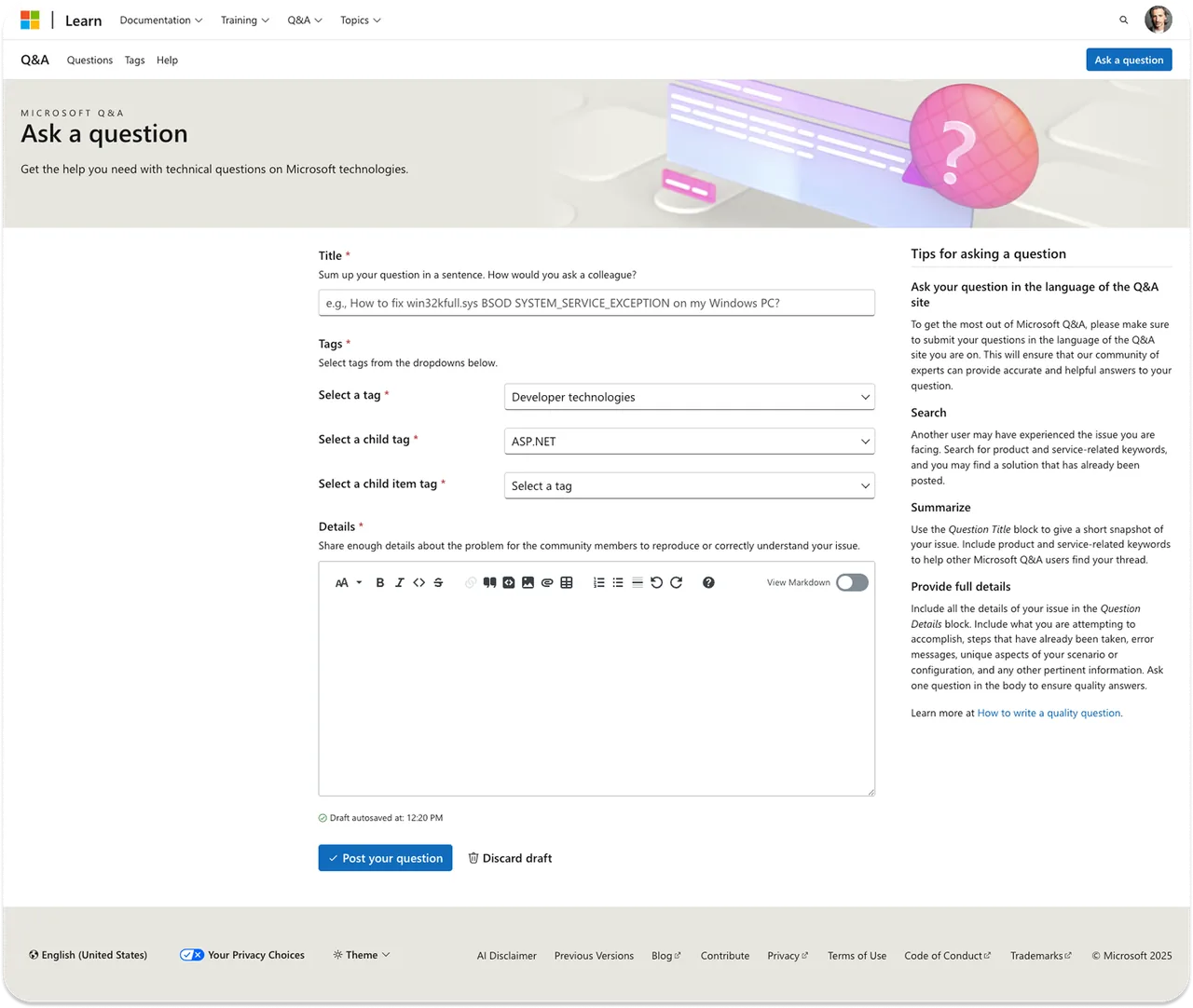
3-Level Dropdown
Complex manual navigation
AFTER
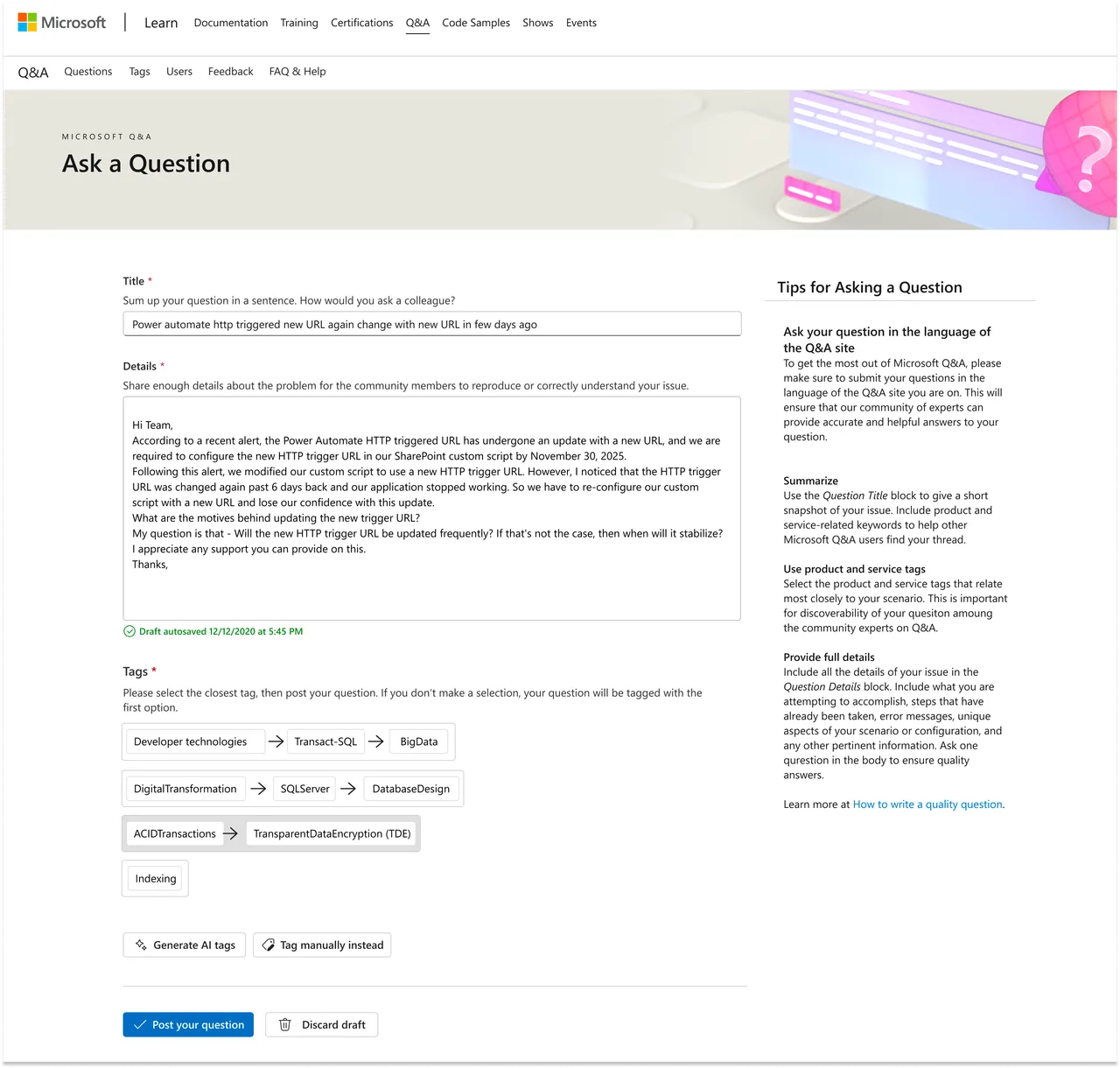
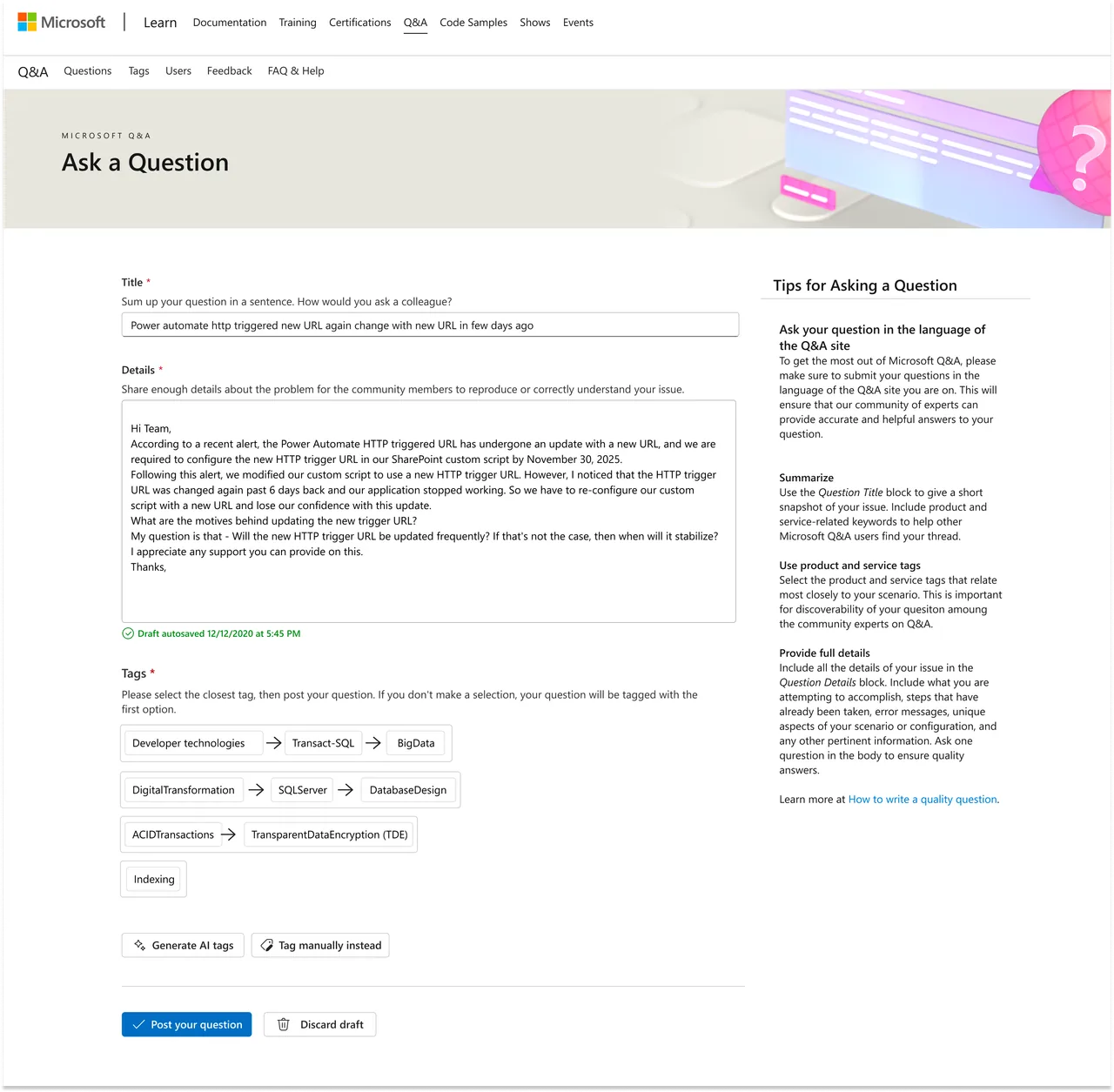
AI Tag Suggestions
One-click selection
Before and after screenshot comparison of the tagging interface
Research & Discovery
User Research Insights
- Users often guessed at appropriate categories
- Many didn't understand the difference between product categories
- Power users wanted flexibility to manually select tags
- First-time users needed more guidance
Key Metrics (Baseline)
Design Solution
Core Features
1 Intelligent Content Analysis
- AI analyzes title + description (minimum 50 characters)
- Generates 5 contextually relevant tag groups
- Real-time validation and feedback
2 Simple Selection Interface
- One-click selection from suggested tag groups
- Visual feedback with hover states
- Auto-select first option as fallback
3 Regeneration Capability
- Users can regenerate suggestions up to 3 times
- Tags shuffle to provide variety
- Clear button states ("Generate" → "Regenerate")
4 Manual Override Option
- Traditional dropdown navigation remains available
- "Tag manually instead" option for power users
- Seamless switching between AI and manual modes
5 Edit Mode Intelligence
- System remembers previous selections
- Contextual helper text adapts
- Fallback to "previously selected tag" instead of "first option"
Question Title
AI-Generated Tags
Lo-fi UI Screenshot
Design Principles
Intelligent Defaults
Auto-select first suggestion if user doesn't actively choose, ensuring all questions are tagged.
Progressive Disclosure
Show loading states and contextual help at appropriate moments without overwhelming users.
Maintain Control
Balance AI automation with user agency through manual override options.
Clear Affordances
Use explicit language that changes based on context ("Generate" → "Regenerate").
Key Design Decisions
| Decision | Rationale | Impact |
|---|---|---|
| 5 AI-Generated Tag Options | Balances accuracy with usability. Top 5 recommendations achieve 70–80% accuracy (vs. 50% for top 1 alone). Each option represents complete product tag hierarchy, ensuring relevant category coverage while keeping UI clean and responsive. | Optimal accuracy-UX balance |
| No unselect functionality | Prevents accidental untagging; encourages deliberate selection | Reduced user confusion |
| Auto-select first option | Ensures all questions tagged even if user doesn't choose | 100% tag coverage |
| "Regenerate" after first use | Clarifies action and sets expectation for refinement | Improved comprehension |
| Maintain previous tags in edit mode | Provides context and fallback option | Better edit experience |
| Hide reset button | Simplified decision-making based on team feedback | Cleaner interface |
| Sparkle loading animation | Branded, delightful waiting experience | Reduced perceived wait time |
Interaction Design
Auto-Generate Tags Flow
Step 1: Users fill out their question (title + description, 50+ characters required)
Step 2: They press the "Auto-generate tags" button
Step 3: System displays 5 AI-generated tag options
Step 4: Users must select one option before posting, streamlining the tagging process and reducing confusion
Contextual Helper Text
First-time: "If you don't make a selection, your question will be tagged with the first option"
Edit mode: "If you don't make a selection, your question will be tagged with the previously selected tag"
Manual mode: Helper text hidden (advanced users don't need it)
Button State Changes
Use Cases
Posting a New Question
As a user, I fill out the "Title" and "Details" fields of a question and press a button to generate tags. This leads to the generation of 5 AI-generated tag options. When I select one, I post a question.
Editing an Existing Question
As a user, I can edit my questions after posting them. This is done within a user-specific "Edit Question" page that replicates the UI of the "Ask a Question" page. The auto-tagging service will be available for my edited question as will the manual tagging dropdowns if I am not satisfied with any of the AI-generated tag options.
Manual Tag Selection
As a user, if I'm not satisfied with the AI-generated tag options, I can press the "Tag manually instead" button to access the traditional dropdown navigation. This allows me to navigate through the 3-level product hierarchy and manually select the most appropriate tag for my question.
User Flows
- User starts asking a question within Q&A and enters all details (Title and Details) in one single form.
- When finished typing their question, they press the "Generate tags" button to prompt AI-generated tag options.
- User sees message: "Generating tags. Please do not leave or refresh the page."
- User sees 5 tag options suggested based on their question. Each tag option encompasses a complete product tag hierarchy (tag, child tag, etc).
- User sees helper text: "Please select the closest tag, then post your question. If you don't make a selection, your question will be tagged with the first option"
- User selects the one tag they deem most appropriate and posts their question.
Happy Path Visual Flow
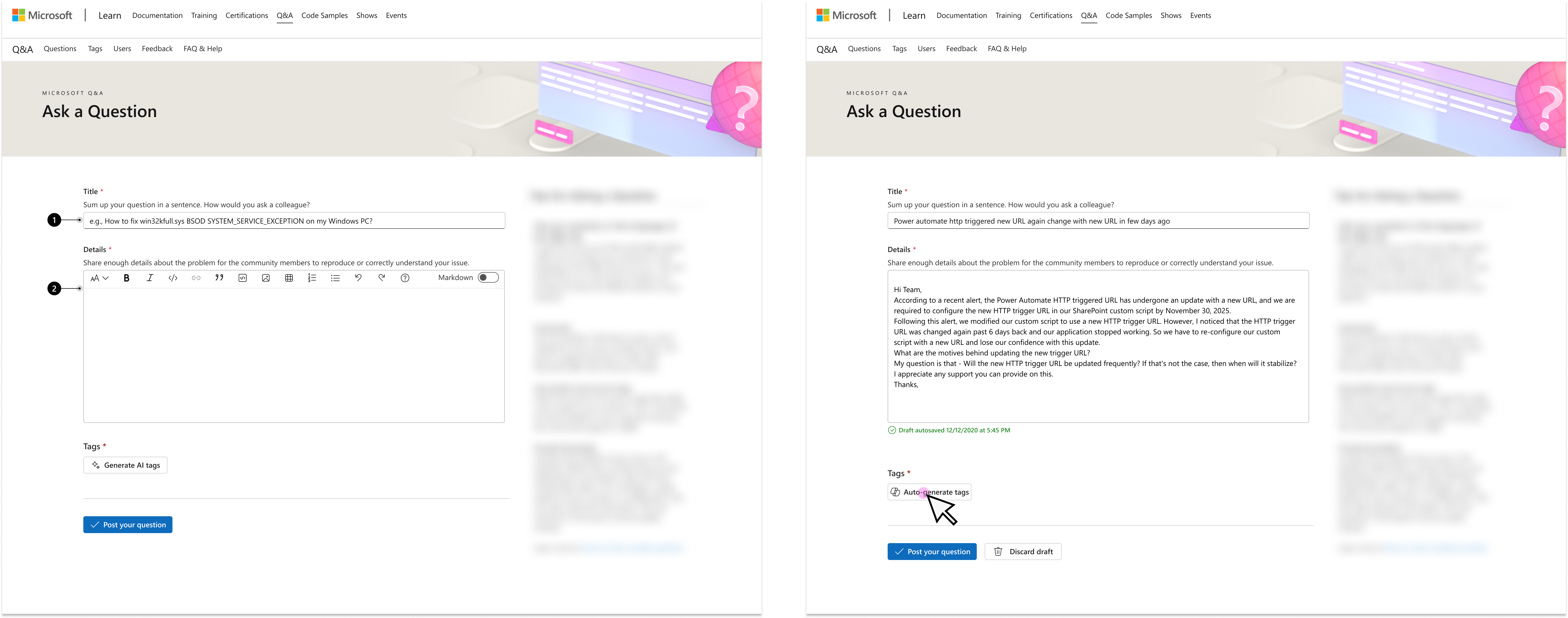
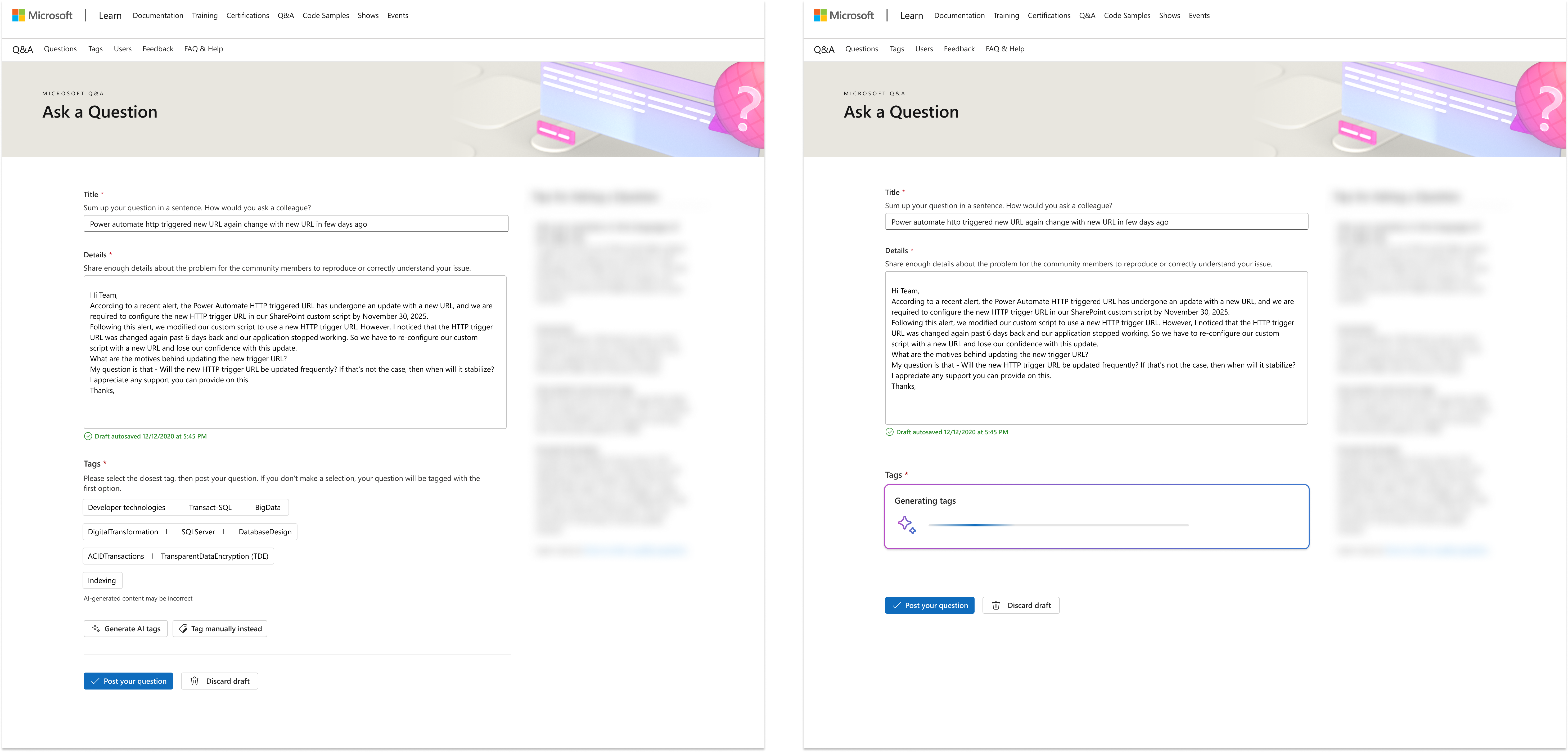
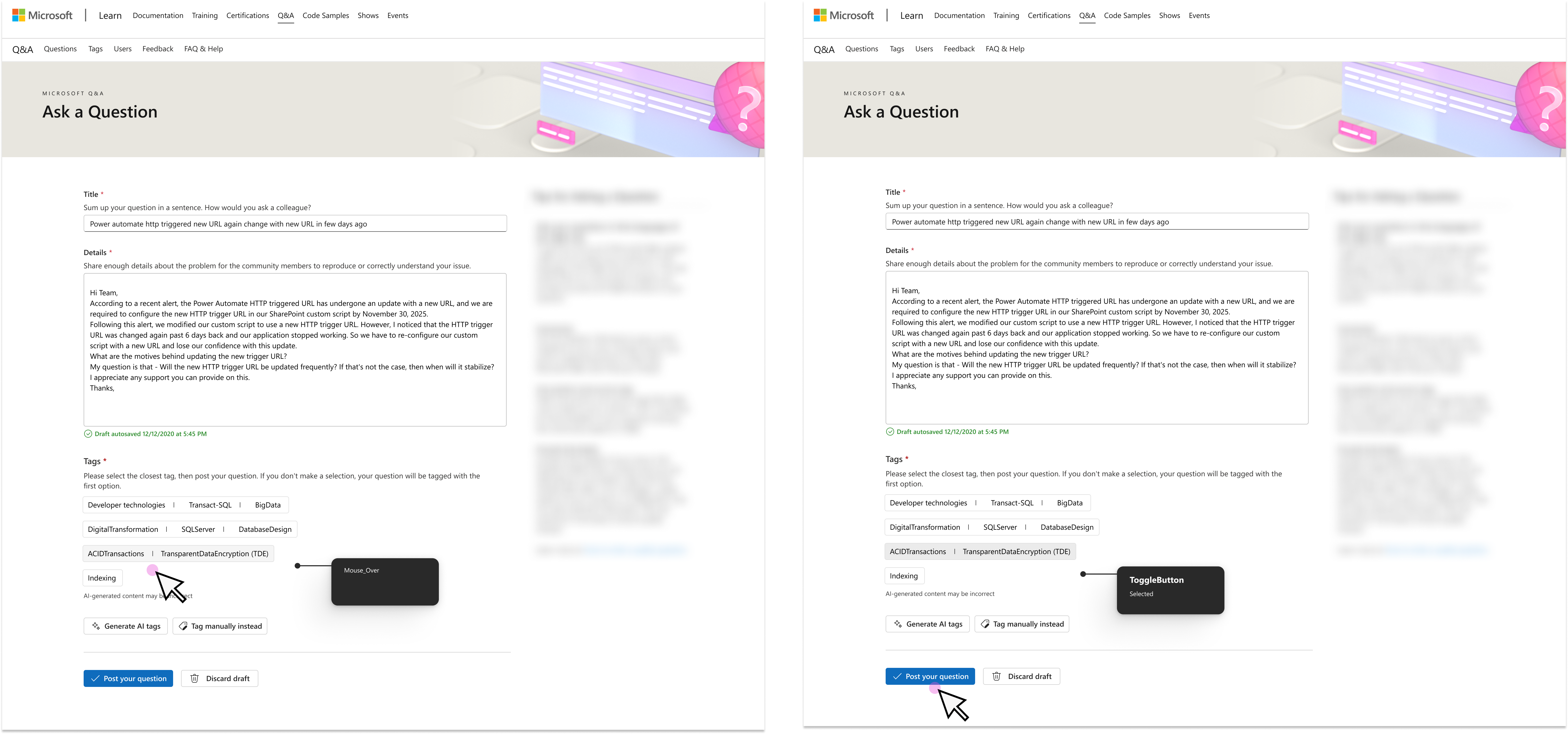
Complete user flow from question entry to successful tag selection and posting
- User starts asking a question and enters all details (Title and Details).
- User presses "Generate tags" button.
- User sees message: "Generating tags. Please do not leave or refresh the page."
- If no matching tags are found, the auto-tagger provides "Microsoft Q&A > Not Supported" tag, with manual tag dropdowns also available.
- User sees message: "This question is not supported by our community. Please edit your question or tag your question manually."
- Note: This occurs when tags aren't supported in Q&A, the model returns no matching tags in the Learn taxonomy, or the question lacked sufficient information.
Not Supported Error State
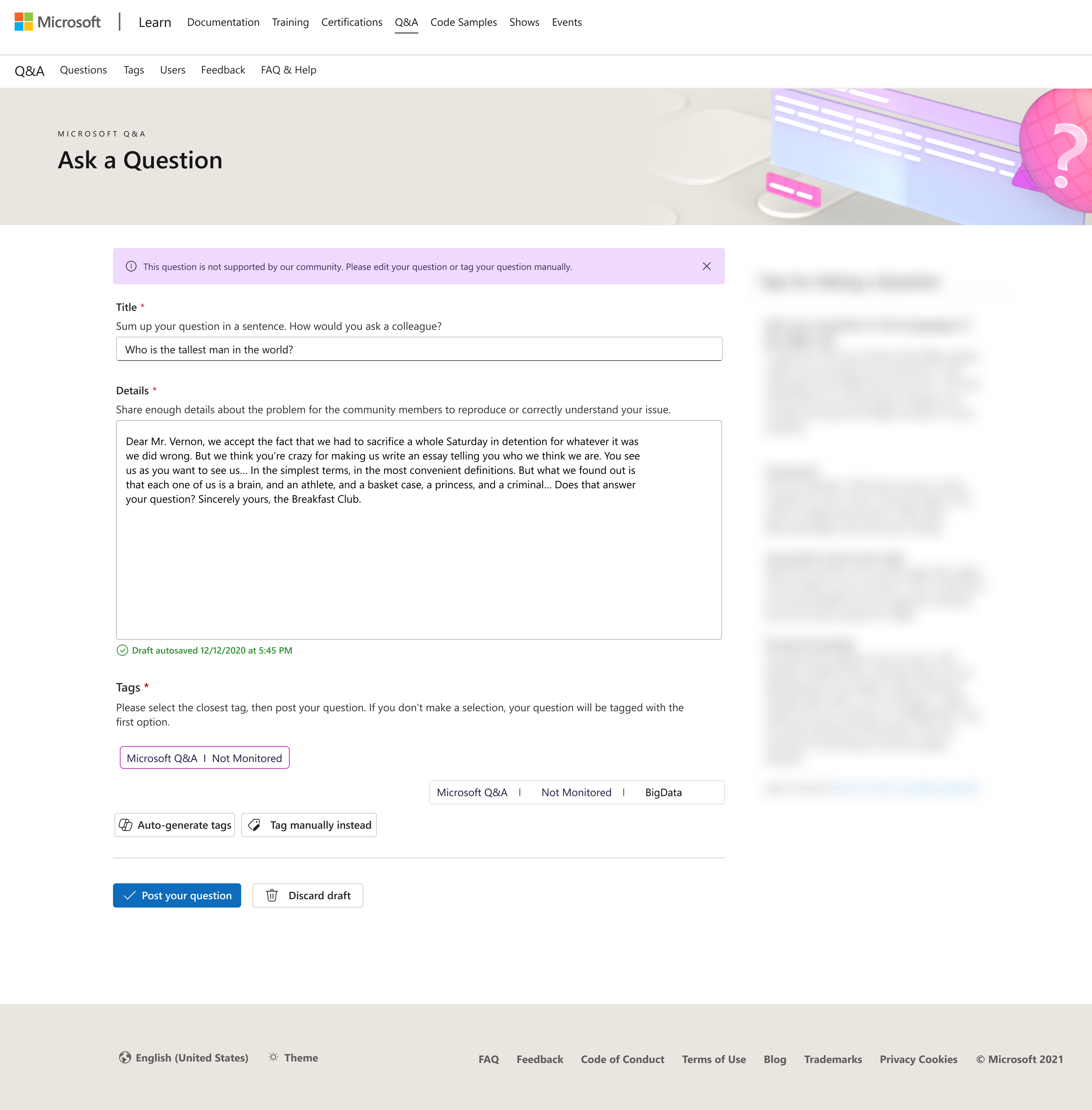
Error state displayed when the system cannot generate relevant tags
- If user doesn't see a fitting tag within the 5 generated options, they can opt to tag manually.
- User presses "Tag manually instead" button, routing them to default tagging UI with dropdowns.
- User can return to auto-tagging experience via "View AI tags instead" button.
Manual Tag Selection Interface
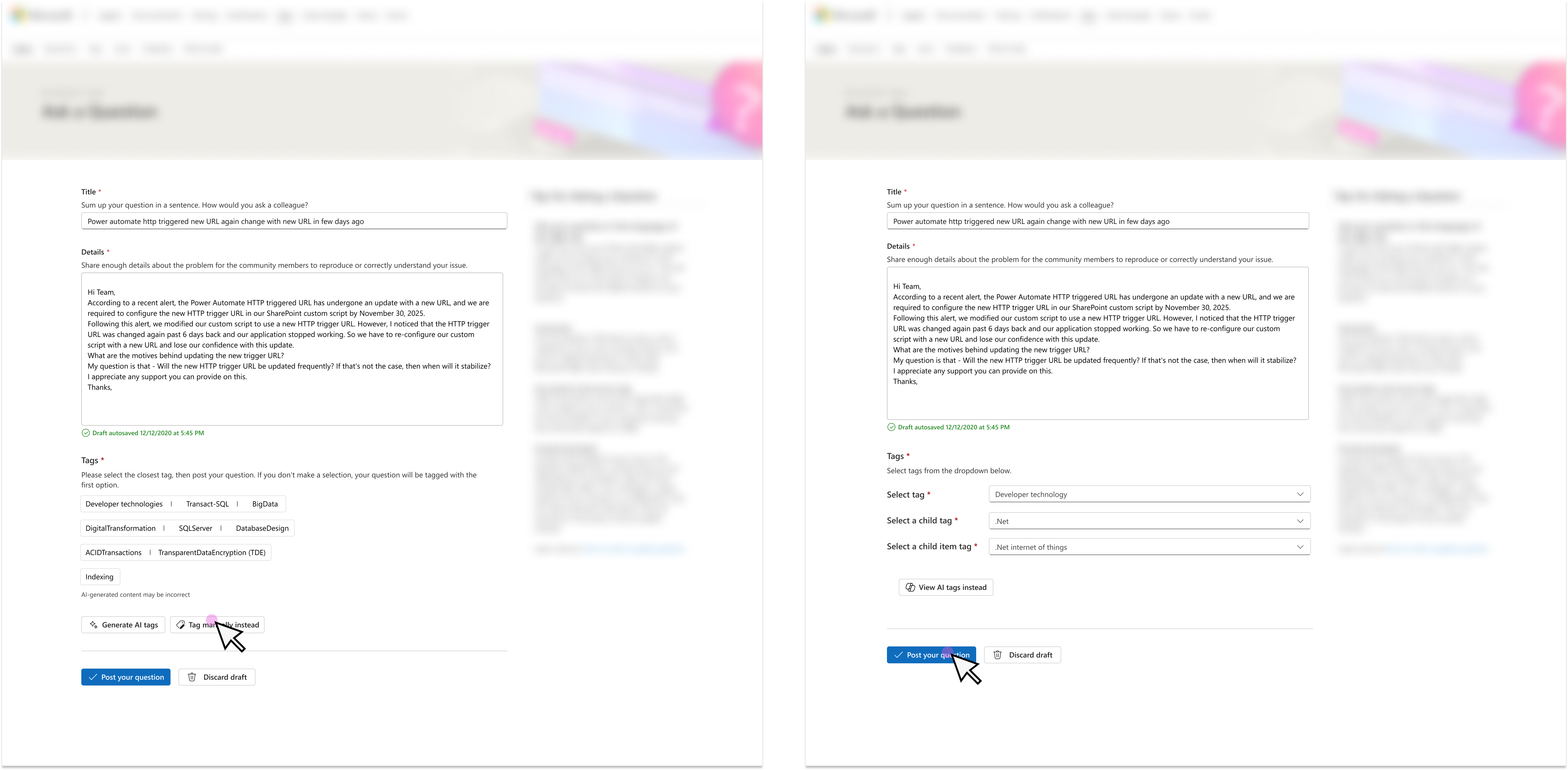
Traditional dropdown interface for manual tag selection
- User selects 'Edit' option (three vertical dots below question) to route to 'Edit a question' page.
- By default, edit page shows the previously selected tag as a label. This tag applies if user makes no changes.
- To edit tags, user presses "Generate AI tags" button for new options.
- User sees helper text: "Please select the closest tag, then post your question. If you don't make a selection, your question will be tagged with the previously selected tag."
- User sees "Regenerate tags" and "Tag manually instead" buttons.
- Pressing "Tag manually instead" routes to default tagging UI, with option to return via "View AI tags instead".
Edit Question Interface
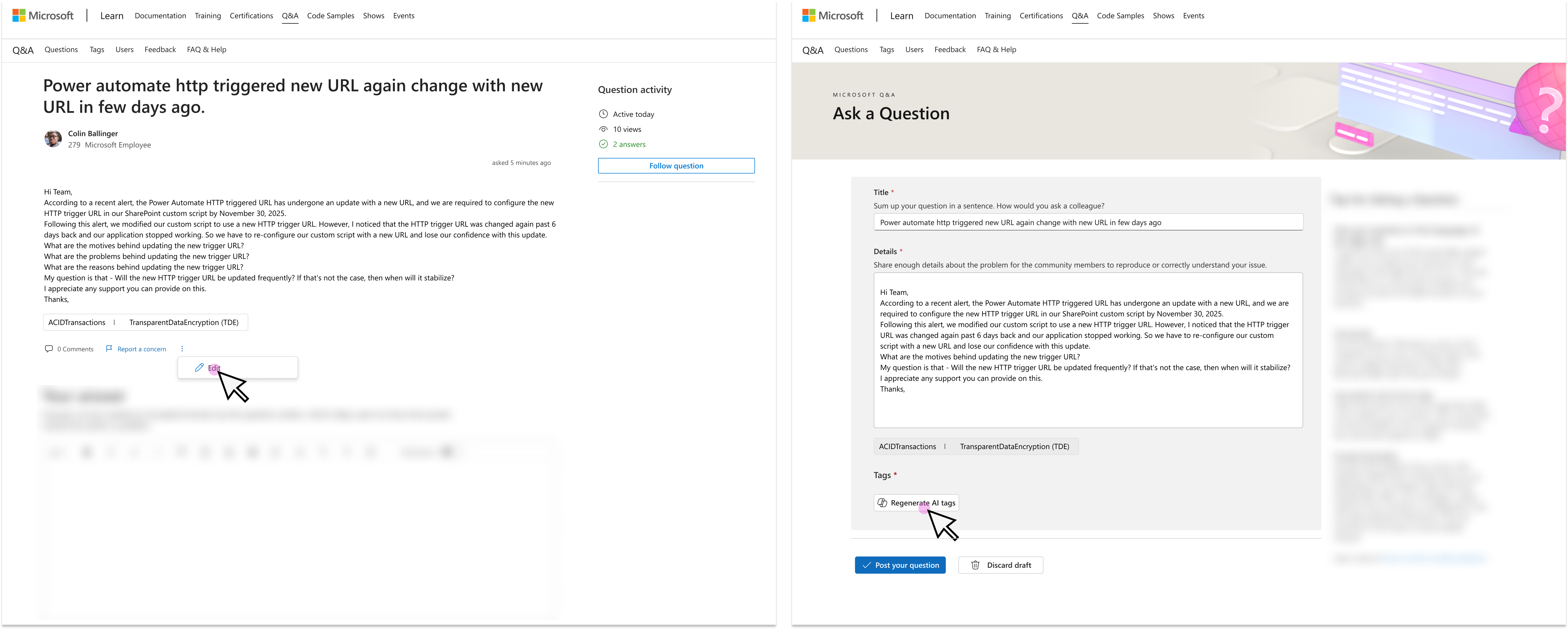
Edit mode preserving previously selected tags with option to regenerate
Technical Implementation
Client-Side Logic
- 50-character minimum for tag generation
- Real-time field validation
- Fisher-Yates shuffle algorithm for tag randomization
- State management for edit/manual modes
Performance Optimizations
- 2-second loading animation (balances perceived quality with speed)
- Smooth CSS transitions for state changes
- Progressive enhancement approach
Accessibility Considerations
- Clear error messaging with focus management
- Keyboard navigation support
- Screen reader-friendly state announcements
- High contrast visual indicators
question
triggers API
5 tags
or regenerates
Flow diagram
Prototyping
To validate the interaction patterns and technical feasibility early in the design process, I created a coded prototype using VS Code with assistance from GitHub Copilot. This approach allowed me to quickly iterate on the user experience while ensuring the design was technically sound.
Coded Prototype Benefits
- Rapid iteration on interaction states and timing
- Real-time testing of button states and helper text
- Validation of loading animations and transitions
- Early identification of technical constraints
Developer Feedback
- Engineering team appreciated having working code to reference
- Reduced ambiguity in implementation requirements
- Facilitated better technical discussions
- Accelerated handoff and development timeline
GitHub Copilot Collaboration
Using GitHub Copilot as a coding assistant enabled me to focus on UX logic while it handled boilerplate code and common patterns. This significantly sped up the prototyping process and allowed me to explore more interaction variations in less time.
Try the Live Prototype
Explore the interactive coded prototype built with HTML, CSS, and JavaScript.
Challenges
Balancing AI Confidence with User Control
Challenge: How much should the system auto-select versus requiring user action?
Solution: Auto-select first option as fallback to ensure 100% tag coverage, while allowing users to actively choose from 5 options. This balanced automation with user agency.
Managing Complex Tag Hierarchies
Challenge: Microsoft's product taxonomy has 3 levels of nested categories—how to display this clearly?
Solution: Each AI-generated option represents a complete tag hierarchy, presented as a single selectable unit. This simplified the mental model while maintaining accuracy.
Performance vs. Perceived Quality
Challenge: AI responses were fast (<1 second), but users might perceive instant results as low-quality.
Solution: Implemented a 2-second loading animation with sparkle effect. This created a sense of "thinking" while maintaining good performance.
Edit Mode State Management
Challenge: How should the system behave when users edit existing questions with tags?
Solution: Display previously selected tag by default, change helper text context, and adjust fallback behavior. This preserved existing work while enabling improvements.
Results & Impact
Success Metrics & Goals
The auto-tagging feature was designed to achieve the following key objectives:
Qualitative Feedback
"So much easier than before!"
"Love that I can regenerate if the first suggestions aren't perfect"
"The manual option is still there when I need precise control"
Learnings
What Worked Well
- Balancing automation with control satisfied both novice and expert users
- Clear, dynamic button text significantly improved user comprehension
- Progressive enhancement reduced risk and allowed gradual rollout
- Branded loading animations made waiting delightful rather than frustrating
What Could Be Improved
- Confidence scores - Show AI certainty level to help users decide
- Tag explanations - Brief descriptions of what each tag covers
- Learning from corrections - Use re-tagging data to improve suggestions
- A/B test auto-selection - Test explicit choice vs. smart default
Next Steps
Phase 2 Enhancements
- Monitor tag accuracy metrics over 3 months
- A/B test auto-selection vs. requiring explicit choice
- Explore confidence scores UI treatment
- Test multilingual tag generation (10+ languages)
- Add "Why this tag?" explanatory tooltips
- Implement machine learning feedback loop
More case studies
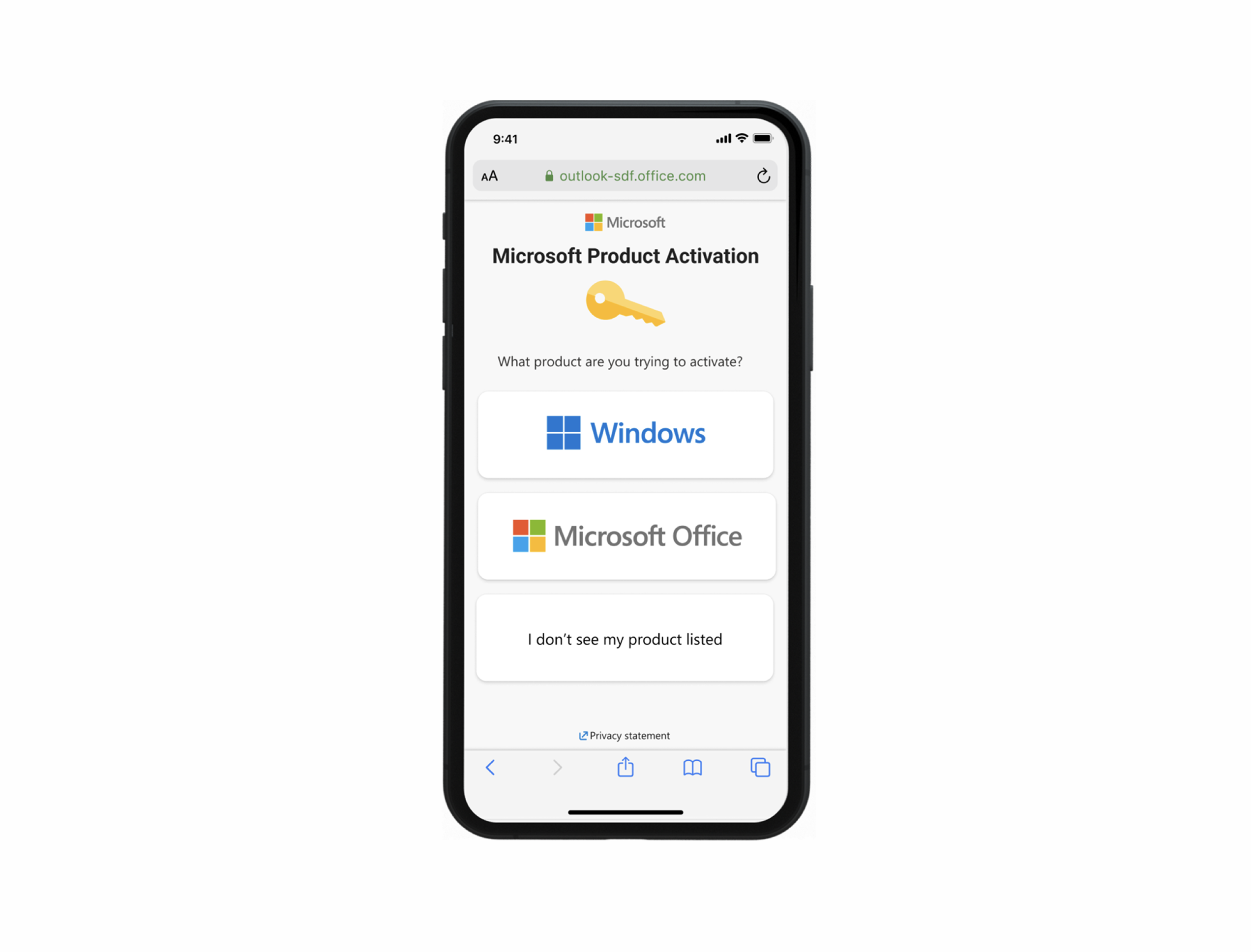
Visual Interactive Voice Response
A smarter, visual version of traditional phone-based support systems.
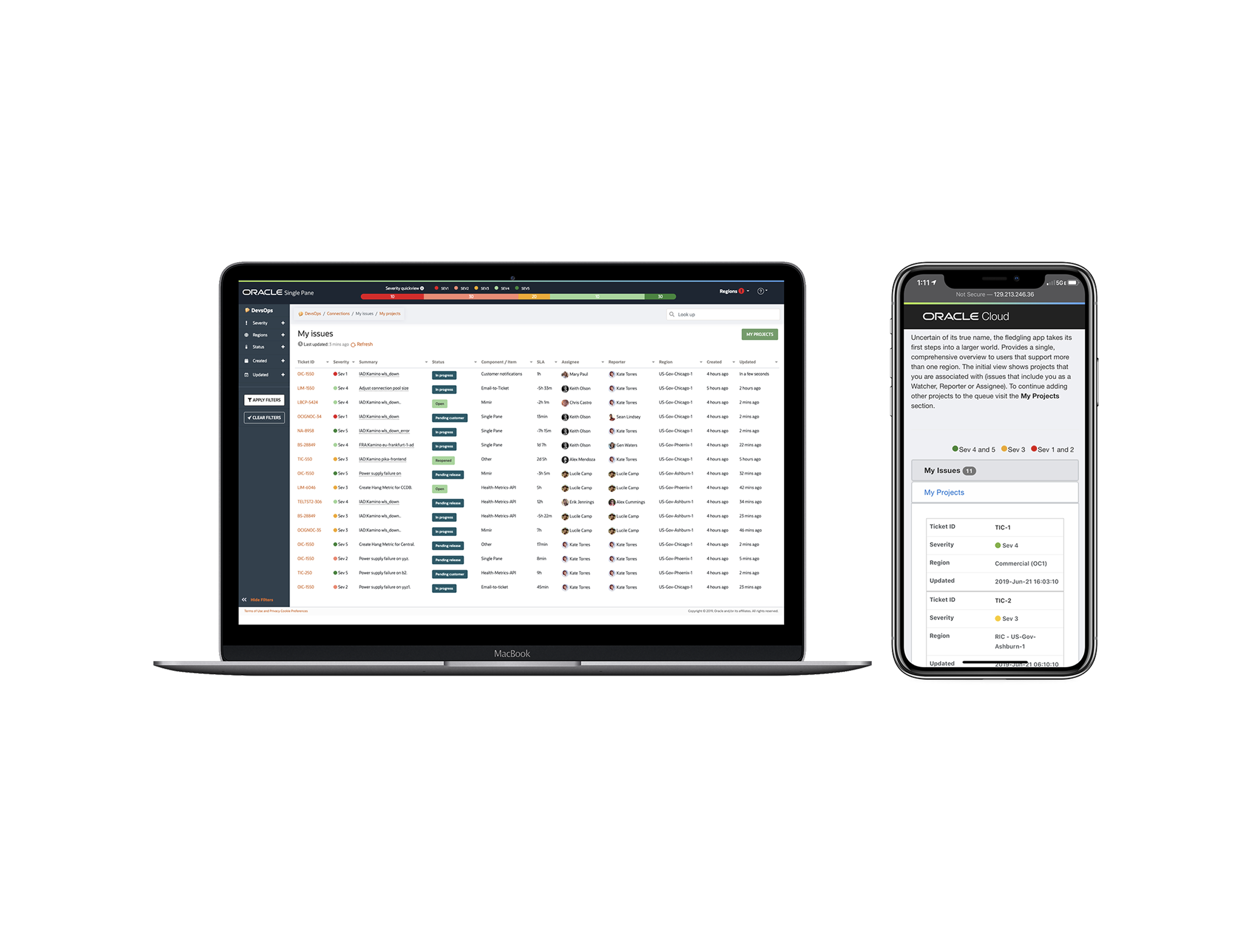
Oracle Single Pane
View multiple Jira SD instances within a single user interface.
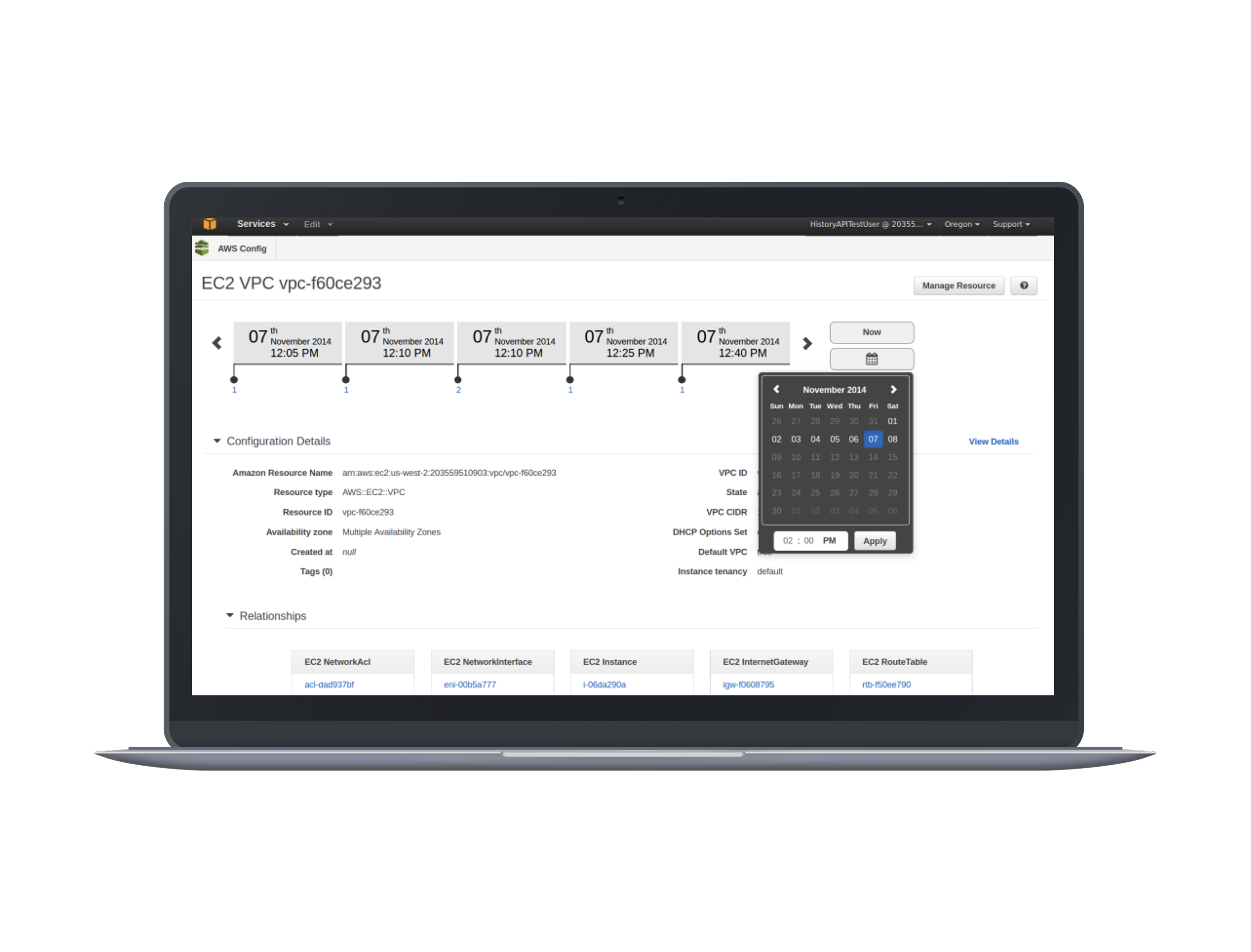
Building AWS Config
Design the timeline for AWS resource configuration tracking.
Amazon Video Lightbox
Browse, view and discover video content within amazon.com.